 HomeGuru
If you have a SmartLinc INSTEON controller from SmartLabs, HomeGuru is the perfect way to control your home's lights and appliances. It allows you to view a list of all configured scenes in your house, view their status and control them by sending on, off or fade commands to them. It is much quicker and friendlier than using the web interface to the device, especially if you use authentication.
HomeGuru supports all the devices the SmartLinc knows about automatically, no further configuration is necessary. Also, there are no weird ports to forward, all communication is done through the standard http interface.
HomeGuru has been tested against SmartLinc firmware version 3.0 (iPhone 2.0). As of 2.0, HomeGuru also supports the Universal Devices' ISY-99i series INSTEON controllers through their REST interface (which works over http or https).
“Home Guru is, hands down, the best app to control your Insteon SmartLinc network.”
Neil Saravanamuttoo, Digital Homes
“I just got the app and I'm impressed mainly for the fact that it was easy to set up and works.”
- James W Pyle III
Available in the App Store: HomeGuru (iTunes link)
Please send us any questions or feedback on the product, we are constantly making improvements and welcome your suggestions!
E-mail - homeguru - at - zenwheel dot com
Twitter - @homeguruapp
Getting Started with INSTEON
- Read about the INSTEON technology at INSTEON.net
Getting Started with HomeGuru
When you first run HomeGuru it will have no controllers configured and one will have to be set in the settings. If you have used a previous version there may be one configured already. If there is exactly one controller configured, HomeGuru will automatically enter it. If you are in a controller and want to access settings, you'll have to first tap the "Controllers" arrow at the top left of the display to get to the top level screen on which the settings option is.
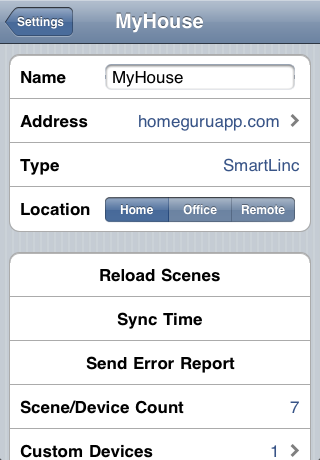
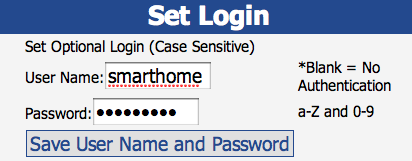
Once in the settings screen, you'll be able to tap "Add Controller" to enter the address of your controller. On that screen you'll also have to enable SSL or authentication if your controller requires it.
Once you successfully enter an address for your controller, HomeGuru will discover what type of controller it is and automatically read the configuration of all your rooms, scenes and devices. If you ever make changes on your controller you can use the "Reload Scenes" option to read the controller's configuration again.
Other configuration options on the controller include a "Sync Time" option to Synchronize the time on the controller with your iPhone (SmartLinc only), "Send Error Report option" (see I am Having Trouble Connecting to my SmartLinc) and "Custom Devices" (see How do I add a new scene or device).
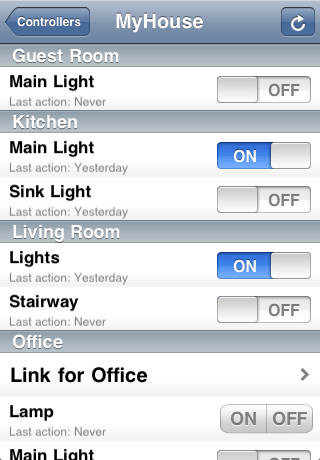
Once configured, you can save the settings (tap Done at the top right) of the top level Settings screen and then tap the name of your controller to view its devices. On the device screen, if you tap the name of a device or scene, HomeGuru will update the status of the device, additionally, tapping the arrow on the top right will update the status of everything. Depending on the capabilities of the device, you will see a toggle switch or a control with ON and OFF on it. Tapping the toggle switch will toggle the device or scene on or off. With the ON/OFF control, you can send either an on or off command to the device depending on where you tap. Also, if the device supports dimming, if you hold ON or OFF, instead of sending an on or off, it will begin fading the device until you lift your finger. Lastly, a custom device that supports dimming can do direct dimming, in this case, you will be presented with a slider to control the brightness of the device.
The refresh arrow on the top right will update the status on all of the devices, in addition to being able to tap the name of each device to update a particular device's status. This is useful since the ON/OFF toggle needs to know the status before you can turn it on or off. While it is updating status or even when it is sending a command, you can turn other devices on or off or request status and those commands will be queued. Any actions will take priority in the queue over status requests.
I am Having Trouble Connecting to my SmartLinc
Without having access to SmartLincs configured for each installation's unique setup, it is difficult to make HomeGuru support every possibility. If you are receiving errors while loading HomeGuru or controlling your devices with HomeGuru, please help us out by sending an error report by using the option under a controller inside the settings. Thank you for your patience.
How do I add a new scene or device?
You can add a new scene on your INSTEON controller and then go to settings and reload devices for your controller.
If you want to have more precise control over a device, with a SmartLinc controller, you can add a custom device beneath a controller in the settings. Near the bottom of the controller configuration there is an option for Custom Devices, when tapped you get a list of custom devices configured, which at first will be empty. Tap the "+" near the top to proceed, then fill in the details about the device.
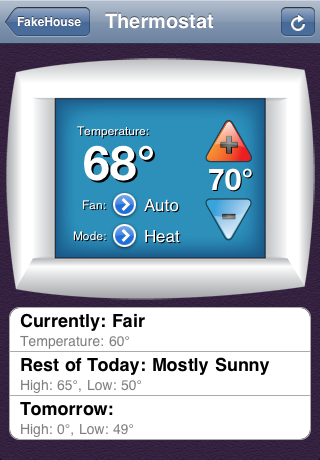
The address option allows you to choose an INSTEON address or an X10 address for the device. X10 devices can only be turned on and off, but INSTEON devices, you'll need to set a few options on the bottom of the custom device configuration screen. If you have more than one thermostat in your house, this is where you'd add additional thermostats (Thermostat: ON). You can also choose if you want the device to be polled for status (Provides Status) and if it does, you can set if it *only* provides status. This may be useful for an IOLinc device that can show if a door is open but you can't open or close it through the INSTEON network. While we're talking about IOLinc devices, the last option can direct the custom device to request status for the IOLinc's sensor input rather than the state of the switch, with the door example before, it will be critical to set this option so we see the status of the door's sensor.
If you are adding a device that which already has a scene controlling it, you can set an override device which will cause HomeGuru to hide the automatically loaded scene from the controller and instead only show you your custom device. If you have a scene that controls a dimming light switch, a scene can only turn on, off or fade the light up and down (by holding the ON or OFF). A custom device is much cooler, it can load the actual level of the device and use a slider to set the brightness. In this case, you may want to override the scene with a custom device with "Provides Status" set to ON and "Dimable" set to ON (all other options OFF). Voilà now the light shows up with a slider!
How do I use HomeGuru over the internet?
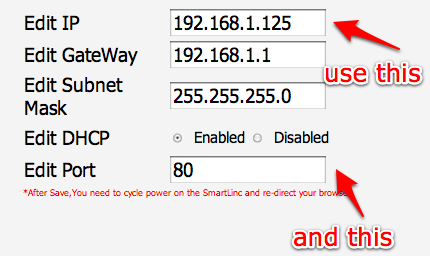
The easiest way is to add a port-forward to your router to allow connections to a certain port to reach your SmartLinc's web server. You'll probably also want to give the SmartLinc a static IP or a static DHCP lease.
As of version 2.0, you can set up multiple controllers which allows for different configurations for inside and outside your home's firewall. For instance, you can have a controller with address 192.168.0.10 for inside your network and perhaps something like myhouse.dyndns.org for outside. HomeGuru allows you to set a Location label for each of these so in controller list, each one will appear beneath each label. In the example above, you probably would use "Home" for the 192.168.0.10 controller and "Remote" for the dyndns.org version.
How do I make sure my home automation is secure over the internet (How do I use SSL)?
Since the Smartlinc doesn't support SSL, if you wish to use SSL you can set up a machine or your firewall to redirect via stunnel to secure the connection. If you use pfSense for your firewall, it has a package for stunnel that makes securing your SmartLinc nearly painless. You'll want to avoid having a direct port-forward, but instead use a secure tunnel port on your external IP to forward to the insecure internal port on your SmartLinc. To make it easier to set it up on your home network, HomeGuru can accept self-signed certificates.
I am getting a "Command Failed (too many retries)" error while reloading status on v2.0.1
This usually occurs because the status device for a particular scene is set to something that is no longer available (i.e. not plugged in, replaced with a new device). If you are refreshing all statuses, you can narrow down which scene by tapping the name of each scene until you get the error, then on the SmartLinc, you can fix the status device or disable status. After changing the SmartLinc, go to settings and reload devices from your controller in the App.
Who made that awesome icon?
The design, including the icon, thermostat and switch graphics (iPad) for HomeGuru were created by Amber Ward.
© 2009 Scott Jann